> ## Documentation Index
> Fetch the complete documentation index at: https://unkey-chronark-cli.mintlify.site/llms.txt
> Use this file to discover all available pages before exploring further.
# Deploy your first app
> Deploy your first application on Unkey from a GitHub repository. Connect your repo, configure build settings, and go live in minutes.
Deploying applications on Unkey is in public beta. To try it, select
**Projects** in the dashboard sidebar and create a project. Deployed
resources are free until August 1, 2026. We're eager for feedback, so let us
know what you think on [Discord](https://unkey.com/discord),
[X](https://x.com/unkeydev), or email
[support@unkey.com](mailto:support@unkey.com).
This guide walks you through deploying an application on Unkey for the first time. You'll create a project, connect a GitHub repository, and have a running app with a live URL.
## Prerequisites
* An Unkey account
* A GitHub repository
## Create a project
Navigate to your workspace and click **New project**. Enter a project name and slug, then click **Create Project**.

 Click **Import from GitHub**. If you haven't installed the Unkey GitHub App yet, you'll be prompted to install it on your organization or personal account.

 Choose your repository and branch. Unkey auto-detects Dockerfiles and shows their status next to each repo.

 Don't have a repository ready or want to deploy with the [CLI](/build-and-deploy/cli) instead? Click **Skip for now** to finish onboarding without selecting a repository. You can connect GitHub later from your project's settings.
Review the defaults for root directory, Dockerfile path, and watch paths. Expand **Runtime settings** to configure regions, CPU, and memory. Expand **Advanced configurations** to add environment variables.
Don't have a repository ready or want to deploy with the [CLI](/build-and-deploy/cli) instead? Click **Skip for now** to finish onboarding without selecting a repository. You can connect GitHub later from your project's settings.
Review the defaults for root directory, Dockerfile path, and watch paths. Expand **Runtime settings** to configure regions, CPU, and memory. Expand **Advanced configurations** to add environment variables.

 Click **Deploy**. Unkey builds your image, provisions infrastructure across your selected regions, and assigns domains.
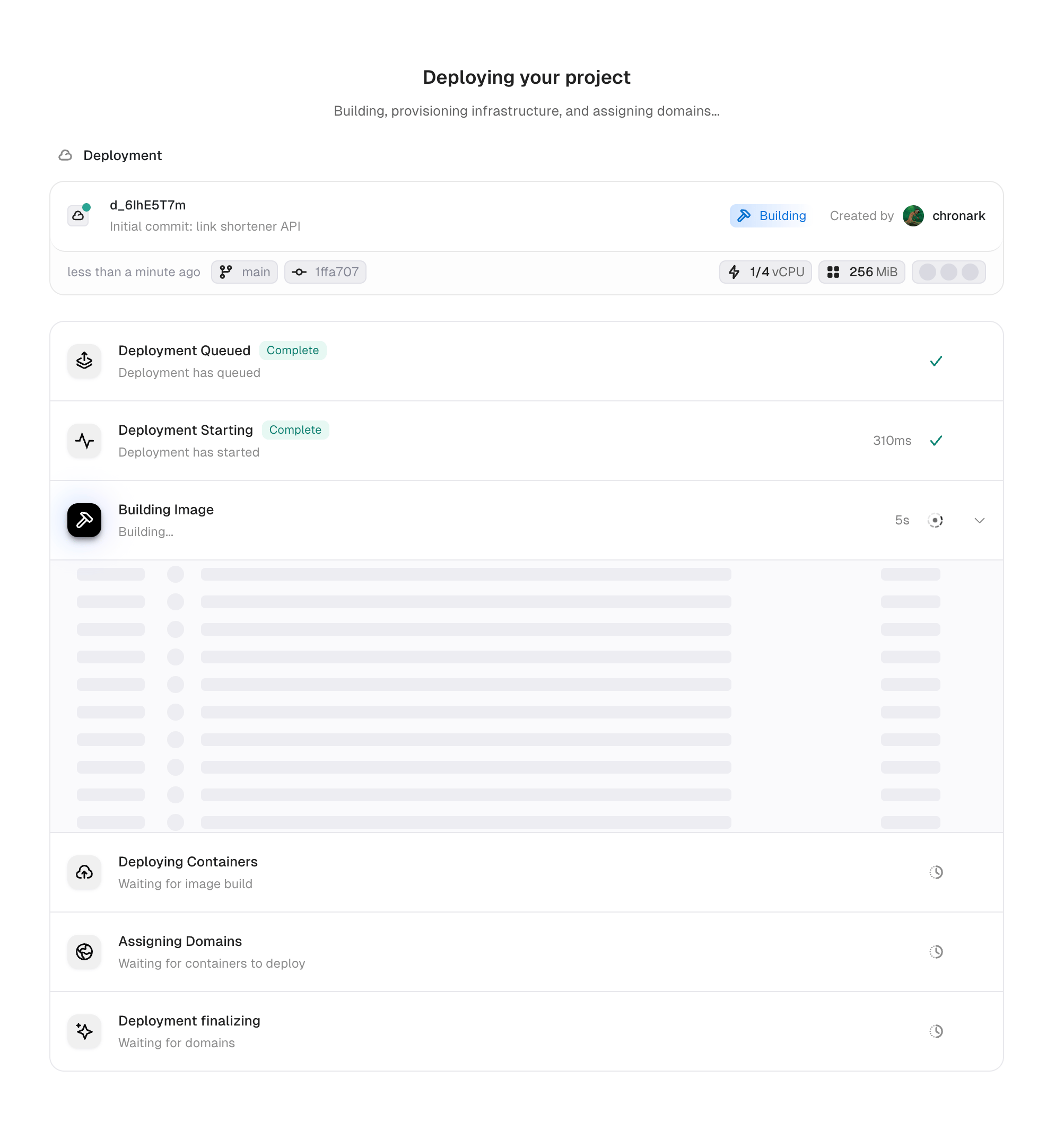
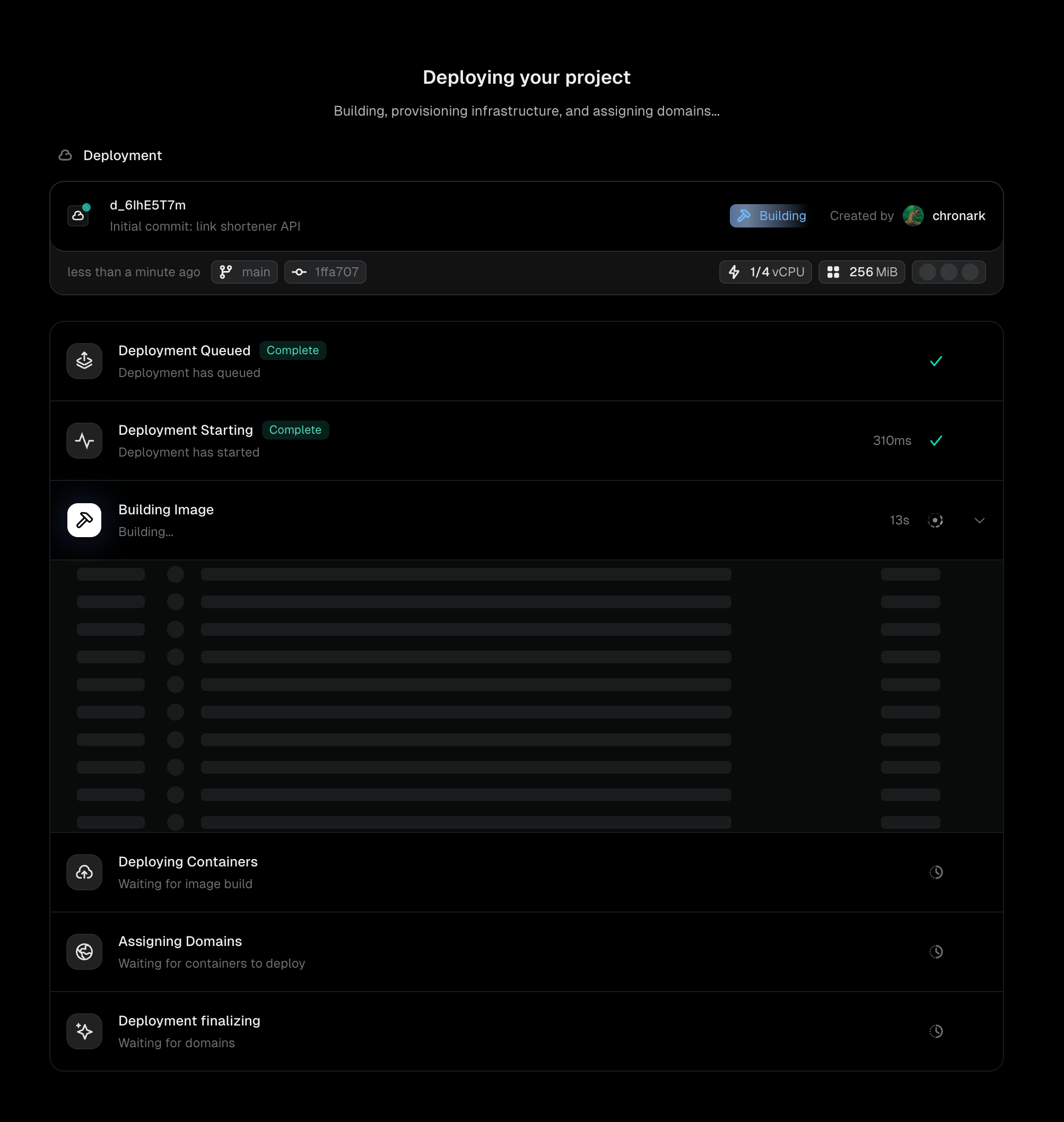 Once the deployment reaches **Ready**, your app is live. Unkey assigns several domains automatically, including an environment domain and a commit-specific domain.
## What happens next
After the initial setup, every push to your repository triggers a new deployment automatically:
* Pushes to the default branch (typically `main`) deploy to **production**.
* Pushes to any other branch deploy to **preview**.
Each deployment gets its own unique URL, so you can test any version independently.
## Next steps
Branch mapping, fork protection, and watch paths
Configure regions, CPU, memory, health checks, and more
Add environment-specific configuration
Serve your app from your own domain
Once the deployment reaches **Ready**, your app is live. Unkey assigns several domains automatically, including an environment domain and a commit-specific domain.
## What happens next
After the initial setup, every push to your repository triggers a new deployment automatically:
* Pushes to the default branch (typically `main`) deploy to **production**.
* Pushes to any other branch deploy to **preview**.
Each deployment gets its own unique URL, so you can test any version independently.
## Next steps
Branch mapping, fork protection, and watch paths
Configure regions, CPU, memory, health checks, and more
Add environment-specific configuration
Serve your app from your own domain